Guides · Updated
How to cut a podcast or interview without clipping words
Use a 12:10 to 12:42 answer as a starting example, adjusting the times to your recording. Sonic Cutter exports one continuous selection at a time and does not detect speech or generate transcripts.
Open audio cutter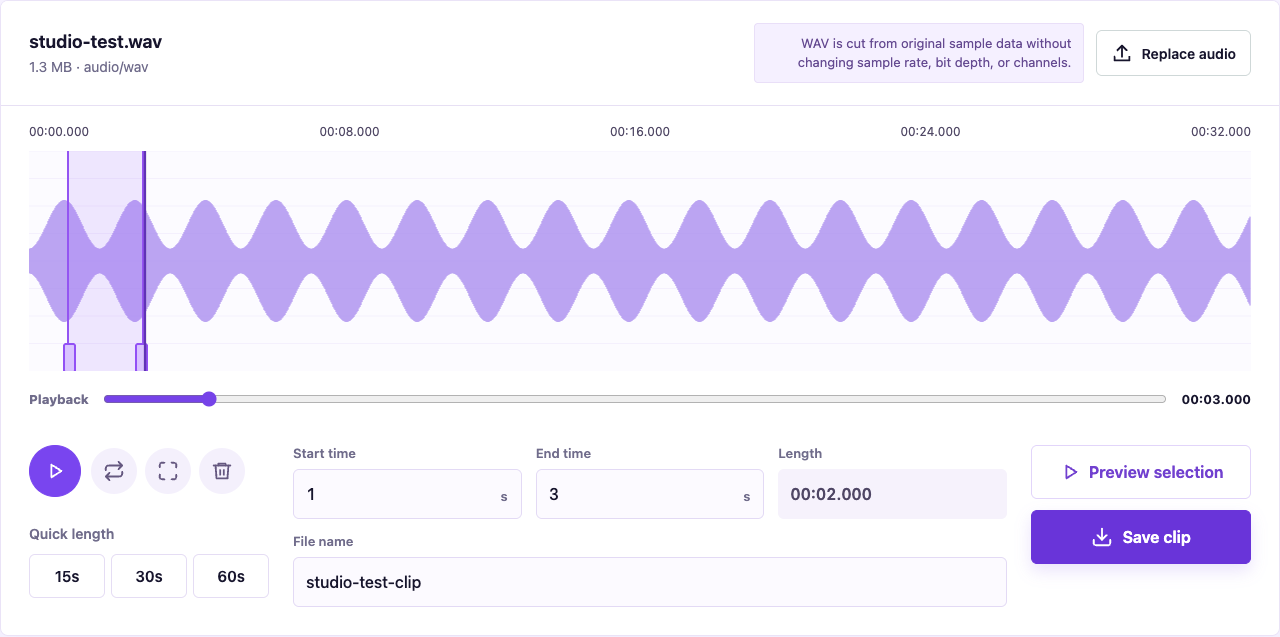
1. Choose an MP3 or WAV recording
Open the cutter, select the recording from your device, and wait for the waveform. Playback compatibility depends on the browser. Keep the page in the foreground while a long recording loads on a phone.
2. Locate the beginning of the sentence
Move playback near the target time and use both listening and the waveform to find the start. Place it just before the first word with a short natural pause, avoiding a clipped consonant or breath.
3. Keep the ending and preview the selection
Leave room for the final word and its decay. Preview the whole selection to check that the answer is complete and the next sentence has not slipped in. Export separate passages separately; joining clips is not supported.
4. Save and verify the excerpt
Play the saved file in your device's player. MP3 remains MP3 and WAV remains WAV. For noise reduction, loudness adjustment or transcription, take the result to an editor that supports those tasks and keep the original recording.
If a long recording fails to load
Local processing avoids an upload, but decoding and building a waveform still use memory. Close other memory-heavy tabs and retry on a desktop browser. If the system player cannot play the file either, check the source first. Avoid repeatedly selecting or saving while loading is in progress.