Guides · Updated
How to cut an MP3: select, preview and save a clip
This example keeps the music from 00:45 to 01:00. Adjust those times for your own file. The browser works with local audio data and saves a new file, leaving the original recording intact.
Open audio cutter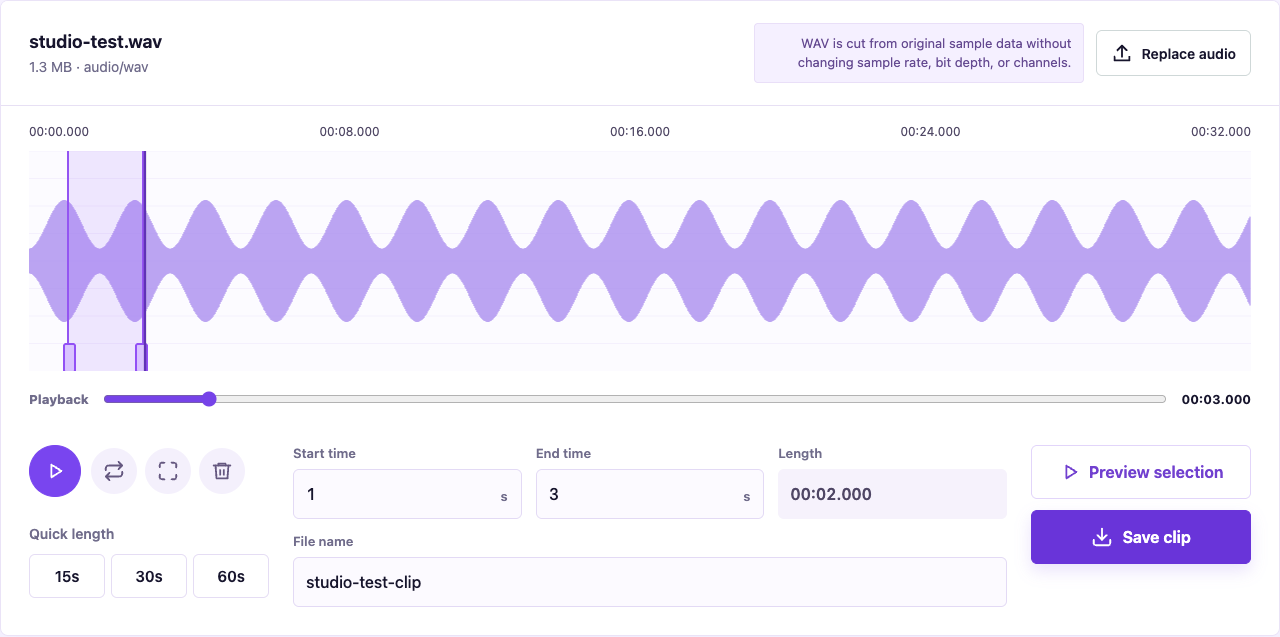
1. Choose an MP3 in the cutter
Open the audio cutter and select an MP3 from your device. Wait for its waveform and duration. Protected music downloads are not ordinary MP3 files; renaming an extension does not make them editable audio.
2. Set the start and end
Drag the selection handles or enter 00:45 as the start and 01:00 as the end. You can move the playback position to find the passage first, then refine the selection. Use times that fit your recording.
3. Preview the selected passage
Use the selection preview button to listen from the chosen start to end. Check the first note and last phrase, then adjust the boundaries. Full playback and selection preview serve different purposes; use the latter to check your clip.
4. Save and check the new file
Save the clip and find the new MP3 using your browser's download settings. A download may go directly to Downloads without a dialog. Play the result to check its content and boundaries before using it as a ringtone or editing source.
Why the saved time can differ slightly
MP3 output aligns to existing audio frames, so actual cut points can differ by milliseconds from the entered time. Preserving encoded data avoids another lossy encode but cannot recover detail lost earlier. Use an original WAV for sample-based editing; renaming the extension is not conversion.
Choose and save a file on a phone
Choose an MP3 from the system file picker, not a protected music-app download. If dragging the handles is difficult, refine the start and end with the time inputs. Preview, save, then check the browser downloads or your Files app. A save dialog depends on browser settings.