Guides · Updated
How to Edit MP3 Online: Trim, Split, Preview and Save
Editing an MP3 can mean keeping one passage, making chapters, or changing the sound itself. Sonic Cutter handles trimming and splitting existing MP3 files locally. Volume changes, fades, mixing, noise removal and format conversion are not available here.
Open audio cutter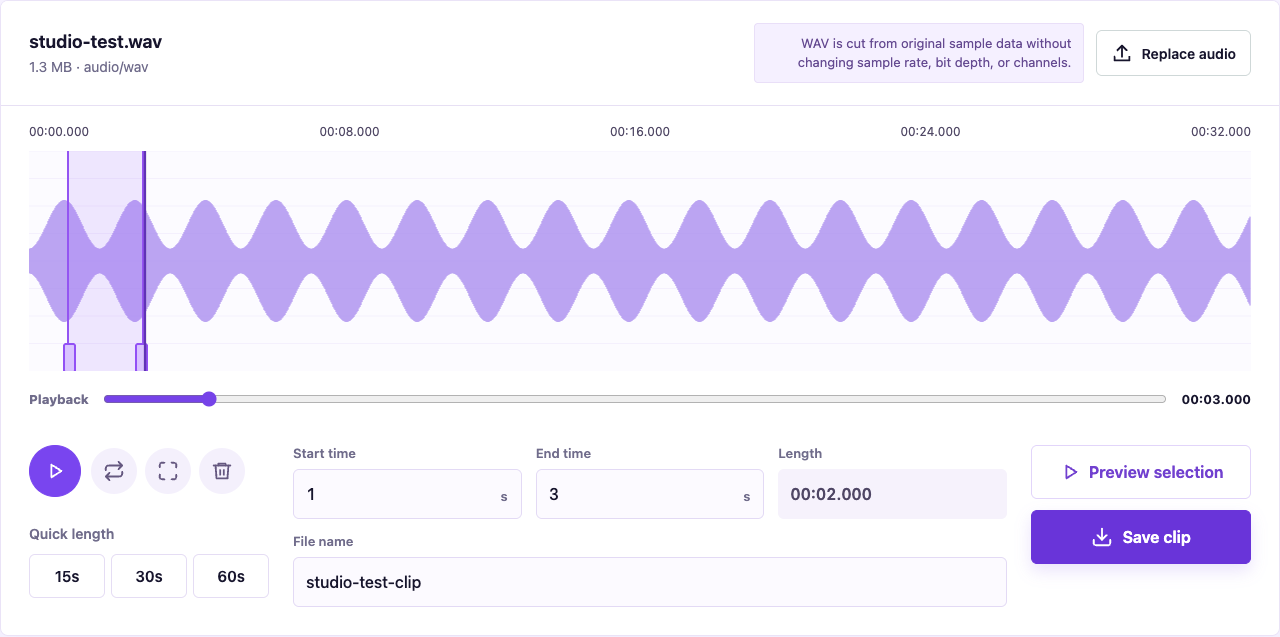
1. Choose trim or split
Use the audio cutter to keep one continuous excerpt. Open the MP3 splitter to keep the recording as several consecutive files. Both work with a local MP3; a protected music download is not made compatible by changing its extension.
2. Set the boundaries
For trimming, drag the waveform handles or enter the start and end. For splitting, enter a duration in seconds or a comma-separated list such as 0:30, 1:00. The splitter keeps all parts, including the final remainder, and shows frame-aligned times.
3. Preview before saving
In the cutter, preview the selected range. In the splitter, the preview plays the actual exported MP3 part. Listen for clipped words, the first note and the closing pause. MP3 decoder dependencies may affect the opening of a segment.
4. Save and check the result
Save one clip, download individual parts, or use a ZIP for several parts. Find the file in browser Downloads or your device's Files app, and play it in another player if needed. The original file is unchanged; keep it for future edits.
When this MP3 editor is not enough
Choose a full audio editor if you need to join separate recordings, adjust volume, remove noise or add fades. Those operations change audio samples and usually require a new encode for MP3 output. Copying frames avoids another encode but cannot improve the source quality or guarantee seamless joins.